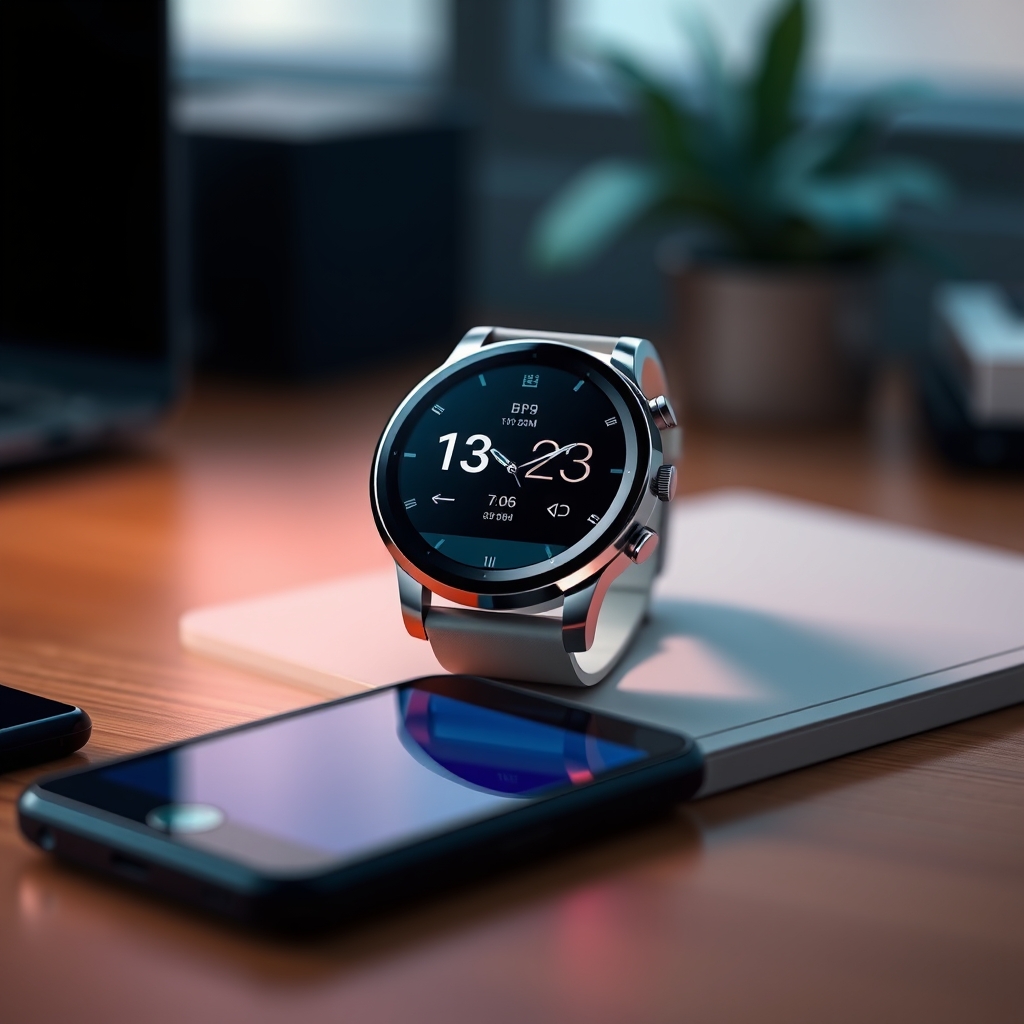
Wear OS adds system status bar and previews Wear OS 7.1 features
Introduction: Why the new system status bar matters
Google’s recent announcement about a “later platform release of Wear OS” has created a buzz among smartwatch developers and enthusiasts. The addition of a system status bar marks a significant shift in how apps interact with the watch’s UI, giving developers more flexibility while preserving a consistent user experience. At the same time, the preview of Wear OS 7.1 promises performance improvements, new design guidelines, and expanded health APIs. This article breaks down what the status bar entails, how the Wear OS 7.1 canary emulator works, and what steps developers should take to prepare their apps for the upcoming release.
What is the system status bar?
The system status bar is a thin overlay that appears at the top of the watch screen, similar to the status bar on Android phones. It displays essential information such as battery level, network connectivity, and the current time. Unlike the previous approach where apps had to hide or mimic these indicators, the new status bar is managed by the OS and can be toggled by the app when needed.
Key characteristics of the Wear OS status bar
- Consistent look and feel: The bar follows Material You theming, automatically adapting to the user’s chosen color palette.
- Developer control: Apps can request the bar to be shown, hidden, or partially transparent, allowing for immersive experiences without sacrificing vital information.
- Battery‑friendly: The bar updates only when necessary, minimizing impact on power consumption.
- Compatibility layer: Existing apps built for Wear OS 2.x will continue to work; they simply receive an additional API to manage the status bar.
How the status bar changes app design
Before this update, developers often placed custom UI elements at the top of the screen to show battery or connectivity, leading to fragmented experiences across devices. With the official status bar, designers can now allocate that space for content, knowing users will still see crucial system data.
Design implications
- Re‑evaluate top‑margin constraints in layout files.
- Consider using full‑screen mode only for media or gaming apps that truly need every pixel.
- Leverage the new
setSystemBarVisibility()method to animate the bar in sync with app transitions.
These changes also align Wear OS more closely with the broader Android ecosystem, where the status bar has been a staple for years.
Wear OS 7.1: A sneak peek at the next platform release
The canary emulator released on October 26 gives developers early access to the upcoming Wear OS 7.1 platform. This version builds on the stability of Wear OS 7.0 while introducing several noteworthy enhancements.
Major new features in Wear OS 7.1
- Improved health and fitness APIs: New sensors for blood oxygen, stress monitoring, and advanced sleep tracking.
- Enhanced UI components: Updated Compose libraries for watch‑specific widgets, including circular progress indicators and adaptive typography.
- Battery optimization: Adaptive power management that learns user habits and reduces background activity during low‑usage periods.
- Better multi‑device syncing: Seamless handoff between phone, tablet, and watch for notifications and media playback.
- Security updates: Hardened permission model for location and microphone access on wearables.
Getting started with the Wear OS canary emulator
Developers eager to test the new status bar and Wear OS 7.1 features can download the canary emulator directly from Android Studio. The process is straightforward, but there are a few best practices to keep in mind.
Step‑by‑step setup guide
- Open Android Studio and navigate to Tools > SDK Manager > SDK Platforms.
- Select “Wear OS 7.1 (Canary)” and click “Apply” to install the system images.
- Go to AVD Manager and create a new virtual device. Choose a watch model such as “Pixel Watch (Round)” for a realistic test environment.
- In the “System Image” section, select the recently installed Wear OS 7.1 canary image.
- Finish the wizard and launch the emulator. Once booted, you can enable the system status bar via the new
Settings > Display > System Bartoggle.
After the emulator is running, use Android Studio’s Logcat to monitor status bar events and verify that your app respects the new visibility APIs.
Implementing the system status bar in your app
Google provides a simple set of APIs to control the status bar. Below is an overview of the most commonly used methods.
Core API methods
WearableStatusBar.show()– Displays the bar with default opacity.WearableStatusBar.hide()– Hides the bar, allowing a true full‑screen experience.WearableStatusBar.setTransparency(float alpha)– Adjusts the bar’s opacity between 0 (fully transparent) and 1 (fully opaque).WearableStatusBar.setTheme(StatusBarTheme theme)– Switches between light and dark themes to match your app’s color scheme.
Here is a concise example of how to hide the bar during a media playback session and reveal it when the user pauses:
if (isPlaying) {
WearableStatusBar.hide();
} else {
WearableStatusBar.show();
}
Remember to call these methods on the UI thread to avoid race conditions.
Best practices for a seamless user experience
Adding a system status bar is not just about calling an API; it requires thoughtful design to ensure users feel comfortable and informed.
Guidelines to follow
- Never hide the bar for extended periods unless the app is a game or video player that truly benefits from immersion.
- Respect user preferences by checking the current theme and adapting your UI colors accordingly.
- Provide clear gestures to bring the bar back, such as a swipe down from the top edge.
- Test on multiple screen sizes to verify that the bar does not obscure important UI elements on smaller watches.
Impact on existing Wear OS apps
For developers with apps already published on the Play Store, the transition to Wear OS 7.1 is designed to be painless. The new APIs are backward‑compatible, meaning older devices will simply ignore the calls without crashing.
Migration checklist
- Update your compile SDK version to 34 (or the latest Wear OS canary SDK).
- Add the
wear-status-bardependency to your Gradle file. - Review layout files for top‑margin constraints that may conflict with the status bar.
- Test the app on both the canary emulator and a physical device running Wear OS 7.0 to ensure graceful fallback.
- Submit an updated APK or AAB to the Play Console with release notes highlighting the new status bar support.
Performance considerations
One common concern when adding UI overlays is the impact on battery life and rendering performance. Google has addressed these worries in several ways.
How the status bar stays lightweight
- It uses a single surface view that shares the same compositor as the app, reducing context switches.
- Updates are throttled to once per second for static information like battery level, and only on change for dynamic data such as network status.
- The bar’s graphics are rendered using vector drawables, which scale efficiently across different screen densities.
Benchmarks from the canary release show less than a 2 % increase in power draw when the bar is constantly visible, a negligible impact for most users.
Future roadmap: What’s next after Wear OS 7.1?
Google’s roadmap suggests that the system status bar is just the first step toward a more unified wearable experience. Upcoming features under consideration include:
- Interactive quick‑settings tiles directly within the status bar.
- Context‑aware notifications that adapt their layout based on the bar’s visibility.
- Voice‑activated commands to toggle the bar without touching the screen.
- Deeper integration with Wear OS 3.0 for cross‑device gestures.
Keeping an eye on the official Wear OS blog and the Android Developers portal will help you stay ahead of these developments.
Conclusion: Embracing the new status bar and Wear OS 7.1
The introduction of a system status bar on Wear OS, coupled with the upcoming Wear OS 7.1 release, represents a major evolution in smartwatch UI design. By providing a consistent place for essential system information, Google reduces the need for custom implementations and frees developers to focus on innovative features. The canary emulator gives you a safe sandbox to experiment, while the straightforward API ensures a smooth migration path.
To stay competitive, update your development environment, incorporate the status bar APIs, and test thoroughly on both emulated and physical devices. Doing so will not only improve the user experience but also position your app to take advantage of future enhancements that Google has hinted at.
In short, the new system status bar is a win for developers, users, and the Wear OS ecosystem as a whole. Start exploring the canary today, and get ready to launch a more polished, power‑efficient app on Wear OS 7.1.


news via inbox
Nulla turp dis cursus. Integer liberos euismod pretium faucibua